iLok is an authorization system owned by PACE, and has historically been the primary activation tool for users to manage activations for MPC2 Desktop, AIR Music Tech, SONiVOX, Mixmeister & SoundSwitch Software Products.
While modern software titles from the inMusic Brands family are now activated via inMusic SoftwareUnlock, the contents of this support article provides guidance, answers, and Frequently Asked Questions on how to authorize and manage your licenses within the iLok license manager.
- For new AIR Software purchases, please see this article as iLok activation does not apply: AIR Music Tech | Installing and Activating your AIR Plugins
- For new SoundSwitch purchases, please see this article as iLok activation does not apply: SoundSwitch | How to Set Up and Activate your SoundSwitch Subscription
- Although SONiVOX & Mixmeister are now sunset brands, users still have the ability to manage their software activations via iLok.
CONTENTS
- About iLok
- Activating a License with the iLok License Manager
- Deactivating a License and Transferring to Another Computer
- FAQ and Troubleshooting
- I authorized my license with the software's authorizer, and now I can't activate it on a different computer. What do I do?
- When I attempt to redeem my activation code, I get an error stating that the Code redemption limit has been reached. What do I do?
- When I try to open iLok I get an error stating "Software Component Unavailable." What do I do?
- Learn More About iLok License Manager
About iLok
Before authorizing your software, please review the following key points related to iLok licensing:
- One activation code allows authorization on up to two devices simultaneously. This may include two computers, or one computer and one iLok USB dongle.
- An active internet connection is required for license activation. If the target computer does not have internet access, the license can be activated on an iLok USB dongle using a computer with an active internet connection.
- Licenses can be activated using either method. Activation may be completed through the software’s built-in authorizer or directly via the iLok License Manager.
- License deactivation is managed through the iLok License Manager. Deactivating a license allows the authorization to be transferred to another computer.
- System changes may impact active licenses. If a license is activated directly on a computer and that system fails, or if the operating system is reinstalled without first deactivating the license, the activation may be lost. In 2025, iLok introduced a feature allowing users to perform up to two manual deauthorizations without contacting the developer.
- Best practices for license protection:
- To help prevent license loss, we recommend storing licenses on an iLok USB key (sold separately) or deactivating them prior to making system or operating system changes.
This guide explains how to manage your authorizations, keep track of where they are activated, and reduce the risk of license loss. If you encounter any issues, please refer to the troubleshooting section located at the end of this guide.
Activating a License with the iLok License Manager
While all plugins can be activated directly within the software itself, entering the authorization code through the iLok License Manager can provide additional benefits, such as using the license on more than one computer and managing activations through deactivation, reactivation, or license transfer.
- Find and open the iLok License Manager from your Programs or Applications folder. The license manager is installed with the plugin, so there is no need to run any additional installations.

- Click "Sign In" in the top‑left corner. If you already have an iLok account, sign in. If not, select "Create New Account" and follow the on‑screen instructions on Create New Account in the "Sign In" window, and follow the prompts to create an account.

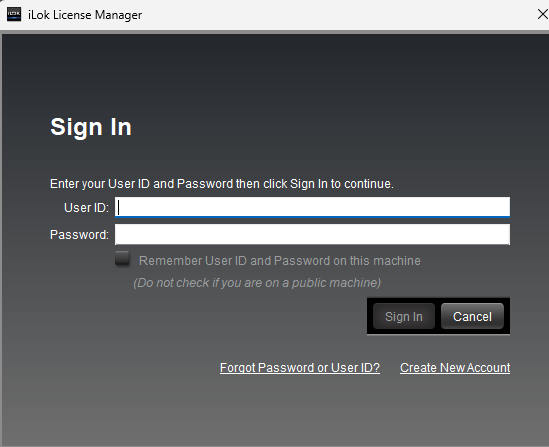
Note: While signing in is not always required to use an iLok license, we recommend using an iLok account. Creating and using an account is free and allows you to keep track of your licenses, along with providing additional options for managing, moving, or transferring licenses when needed.
- Once you are logged in, click on "Licenses" at the top of the window and choose "Redeem Activation Code".

- A window will appear with space for you to enter an authorization code.

- Copy and paste this code into the first box on the left, and the code will fill out the remaining fields. When you're ready, click "Next".
- You will be prompted to select a location for your license. By default, we recommend choosing your computer (the option with the computer icon). If you have an iLok USB dongle, you may select it instead. Once selected, click "Activate".

- You will be asked to confirm this one more time. Click "OK".
- Once complete, iLok will notify you that the activation has been successfully processed.

Note: Follow steps 3 through 8 again to authorize any additional plugins.
Deactivating a License and Transferring to Another Computer
Deactivating a license is helpful when you need to authorize the software on a new computer and free up an existing activation. Once deactivated, the license can be transferred to your iLok account and activated on a new computer or iLok USB dongle by signing in to the iLok License Manager on that system.
Note: This process requires an iLok account.
- Open iLok License Manager.

- Sign in to your iLok account. If you did not create an account during the initial installation or authorization process, you will need to create a free account.
- In the left panel, select the location where the license is currently activated. In the example below, the license is stored on the default computer location.

- Right-click on the associated license and choose "Deactivate".
Note: If the "Deactivate" option is unavailable, the license may have been activated without signing in to an iLok account (for example, through the software’s built‑in authorizer). In this case, right‑click the license and select "Take Ownership" to add it to your iLok account before proceeding with the transfer. For detailed steps, refer to the "Take Ownership" section below.
- Click "OK" to confirm deactivation.

- This will remove the authorization from the currently selected computer or iLok USB device and free up one available activation for the selected license.
FAQ
I am receiving an error that I need to authorize the software through the InMusic Software Center. What do I do?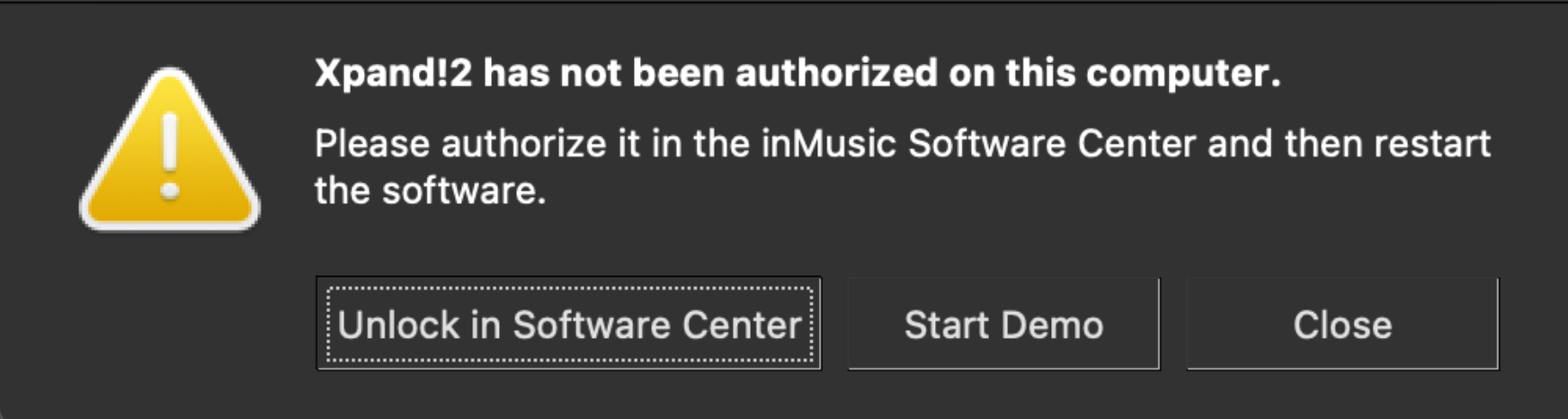
If you are seeing the error shown in the screenshot above, it indicates that the latest software versions are installed, which do not support iLok authorization. Please refer to the linked article for guidance on using the appropriate authorization method: AIR Music Tech | Installing and Activating your AIR Plugins
The main differences between "Activation" & "Redemption"
Redeeming a plugin and activating a plugin are two separate steps. Redeeming adds the plugin license to your iLok account, while activating authorizes the plugin on a specific computer or iLok Dongle so it can be used. Each plugin includes up to two activations per redemption of a license.
I authorized my license with the software's authorizer, and now I can't activate it on a different computer. What do I do?
- On the computer where the software is currently authorized, open the iLok License Manager and create an iLok account, following the steps outlined above.
- In the left panel of the iLok License Manager, select your computer’s hard drive, which is where the license will be stored.

- Locate your license in the main window, then right‑click it and select "Take Ownership" from the menu.

- iLok will prompt you to confirm the request. Click "OK" to proceed.

Note: You can now activate, deactivate, and transfer the license as needed.
When I attempt to redeem my activation code, I get an error stating that the Code redemption limit has been reached. What do I do?
It indicates that the authorization code has already been redeemed to an iLok account or was activated directly through the software without signing in to iLok.
If the code was activated through your account, you can resolve this by following the steps below:
- Sign in to your iLok account
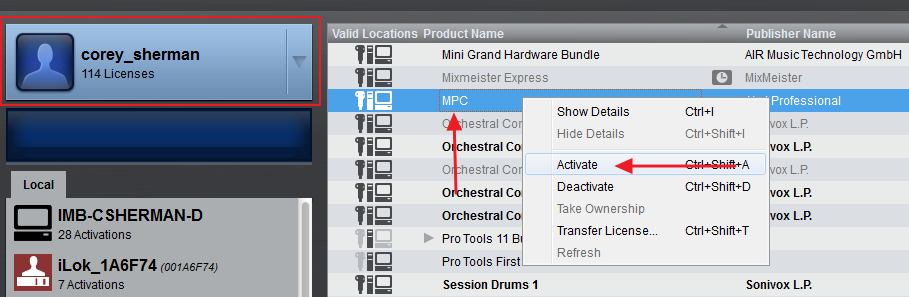
- With the account view selected, your redeemed licenses will appear in the panel on the right.
- Right‑click the license you wish to activate and select "Activate".
- When prompted, choose a location for the license (computer or iLok USB), then click "Activate" again.
- Once complete, iLok will notify you that the activation was successful.
If the code was activated directly within the software, it will need to be manually reset by our support team, so you’ll need to contact support.
If you have access to the original iLok account... Please review the "Take Ownership" steps outlined above.
When I try to open iLok I get an error stating "Software Component Unavailable." What do I do?

Windows users may get this error if the iLok services have not started automatically. To start the services:
- Close the iLok License Manager, navigate to the "Windows Control Panel", and select "Administrative Tools".
- Find and select "Services".
- In the Services window, locate "Pace License Services" and double-click on it to open the properties.
- Set the Startup type to "Automatic" and click on "Start" to start the service.

- Click "Apply", close all windows, and re-open the iLok License Manager.
Learn More About iLok License Manager
Want to learn more about how the iLok License Manager works? Simply follow this link to find out!
Was this article helpful?
That’s Great!
Thank you for your feedback
Sorry! We couldn't be helpful
Thank you for your feedback
Feedback sent
We appreciate your effort and will try to fix the article