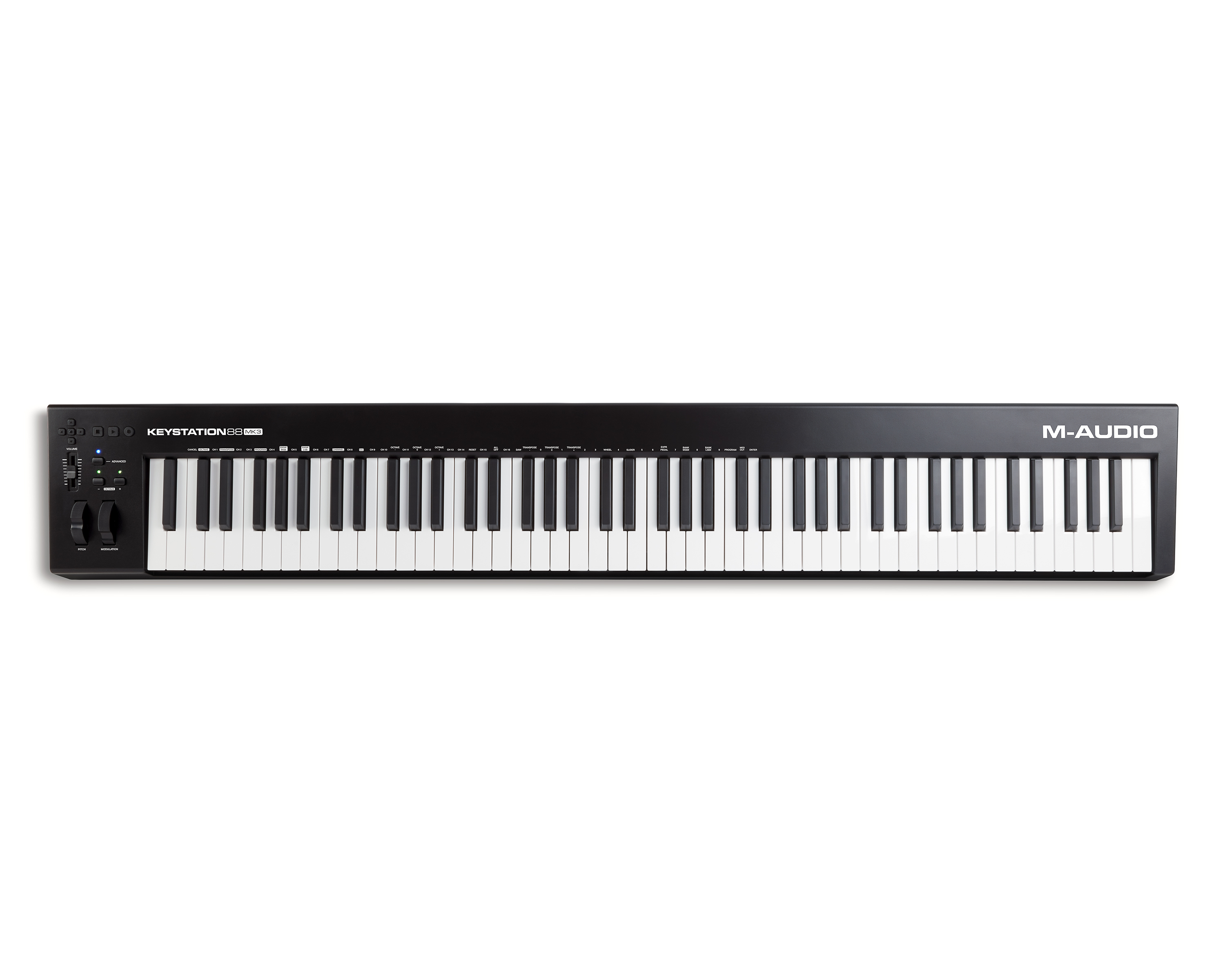
In this guide, we answer some of the frequently asked questions about the Keystation 88 MK3's features and functionality.
Frequently Asked Questions
- Does the Keystation 88 MK3 require a power supply?
- Do I need to install any drivers to use my Keystation controller?
- What operating systems is the Keystation 88 MK3 compatible with?
- How do I register and redeem the included software with the Keystation 88 MK3?
- What are the system requirements for the included software?
- Will the Keystation work with my iPad?
- What software comes with the Keystation 88 MK3?
- Which DAWs can I use this controller with?
- Can I use the Keystation 88 MK3 without a computer?
- How do I perform a Factory Reset?
- What are the main differences between the Keystation 88 MK3 and previous Keystation models?
- How do I set up the Keystation 88 MK3 in Ableton Live Lite?
- What type of expression pedals are compatible with this controller?
- Which hardware parameters are MIDI-assignable and can be reconfigured?
Does the Keystation 88 MK3 require a power supply?
You can power the keyboard via a powered USB port or a third-party power supply. The Keystations are low-power devices, and an external power supply is not necessary unless using the Keystation without a computer (e.g., controlling external synthesizers). Simply connect the included USB cable to an available port on your computer to power the unit and trigger software synths!
Do I need to install any drivers to use my Keystation controller?
No! The M-Audio Keystation 88 MK3 is a class-compliant device, meaning that it is plug-and-play and does not require any drivers to be installed.
What operating systems is the Keystation 88 MK3 compatible with?
Since the Keystation is class-compliant, it will operate off of your computer's core MIDI drivers, providing compatibility for the most recent macOS and Windows operating systems.
How do I register and redeem the included software with the Keystation 88 MK3?
The software licenses included with your Keystation 88 MK3 are redeemed via the inMusic Software Center when your Keystation 88 MK3 has been registered.
For a complete step-by-step guide on registering your hardware and redeeming your included software, be sure to follow the guide linked below:
inMusic Software Center | How To Redeem Software Included With inMusic Hardware
What are the system requirements for the included software?
Ableton Live Lite:
- Mac:
- OS X 10.11.6 or later
- Intel® Core™2 Duo Processor (Intel® Core™ i5 processor or faster recommended)
- 4 GB RAM (8GB or more recommended)
- PC:
- Windows 7 (SP1), Windows 8 or Windows 10 (64-bit)
- 64-bit Intel® Core™ or AMD multi-core processor (Intel® Core™ processor or faster recommended)
- 4 GB RAM (8GB or more recommended)
MPC Beats:
- Mac:
- OS X 10.13.0 or later
- Intel® i5 processor
- 4GB RAM (8GB or more recommended)
- PC:
- Windows 10+
- Intel® i5 processor
- 4GB RAM (8GB or more recommended)
Will the Keystation work with my iPad?
Absolutely! You can connect the Keystation to your iPad using the iPad Camera Connection kit (sold separately) which enables you to perform and compose with audio apps on your iPad and other iOS devices.
Check out the following guide for more information:
What software comes with the Keystation 88 MK3?
The Keystation 88 MK3 comes with the following software:
- MPC Beats
- Ableton Live Lite
Which DAWs can I use this controller with?
The Keystation 88 MK3 will integrate with any DAW or software platform that accepts MIDI data. Refer to your software's documentation for more information on how to set up an external MIDI device.
Can I use the Keystation 88 MK3 without a computer?
Definitely! If you prefer to work without a computer, the Keystation can be powered by a DC 9 V, 500 mA power adapter, and connected to an external sound module via the MIDI DIN output port.
How do I perform a Factory Reset?
- Power off Keystation.
- Hold down the buttons "+" and "-" simultaneously until step 4.
- Power on Keystation.
- Release the buttons.
What are the main differences between the Keystation 88 MK3 and previous Keystation models?
The Keystation 88 MK3 has added the ability to assign the Expression Pedal to different CC values, allowing the user to further customize their setup and playing style.
Additionally, the – and + buttons are now MIDI-assignable to any CC parameter as a toggle or momentary message.
How do I set up the Keystation 88 MK3 in Ableton Live Lite?
- First, connect Keystation 88 MK3 to an available USB port on your computer using the supplied USB cable, and launch Ableton Live Lite.
- Next, open the Ableton Live Lite Preferences window. Choose your Audio Device in the Audiotab. This will be dependent upon the audio interface that you are using.
- MAC: Select Live > Preferences
- PC: Select Options > Preferences
- Select the MIDI/Synctab. Within the MIDI Ports section, adjust the settings as listed below:
- Next to Input: Keystation 88, toggle the On button in the Track and Remote columns.
- Next to Output: Keystation 88, toggle the On button in the Track and Remote columns.
- Next, at the top of the window under Control Surface, choose MackieControl from the drop-down list in row 1. Under the Input column in Row 1, choose Keystation 88 MK3 (Port 2). Ensure the third dropdown menu in Row 1 under Output is set to None. The Transport control (Play, Stop, and Record) on the Keystation 88 MK3 controller will now control and correspond with the Transport functions in Ableton Live Lite. In addition, the Directional buttons on the Keystation series controller will now control selecting tracks and triggering clips.
- Close the Preferences window.
- To add an instrument or plugin to Ableton Live Lite in order to generate sound, in the Categories column, choose Instruments or Plug-ins.
- In the Name column just to the right of the Categories column, locate the Instrument or Plug-in of your choice. Click-and-drag the instrument to a MIDI track in Ableton Live Lite to load the instrument.
- The Instrument can now be triggered with Keystation 88 MK3.
What type of expression pedals are compatible with this controller?
The Keystation 88 MK3 is compatible with any 1/4" TRS expression pedal. Just connect the expression pedal to the Keystation's Expression input for adjusting the volume vibrato, or reverb depth of an instrument patch.
Which hardware parameters are MIDI-assignable and can be reconfigured?
The following hardware controls are MIDI-assignable:
- Octave/Data buttons (+/-)
- Volume Slider
- Modulation Wheel
- Expression Pedal
Was this article helpful?
That’s Great!
Thank you for your feedback
Sorry! We couldn't be helpful
Thank you for your feedback
Feedback sent
We appreciate your effort and will try to fix the article